Offline maps
Applies to: Grit X2 Pro Vantage V3 Vantage M3 Grit X2
You can download offline maps from the Polar Flow web service and transfer them to your watch using a computer. The maps available in the Flow web service include detailed maps of countries and regions, as well as basic maps of continents and large areas. Basic maps of North America and Europe are pre-installed on your watch. Offline maps are available for Grit X2, Grit X2 Pro, Vantage M3 and Vantage V3 users.
Using offline maps during training
During training, offline maps are available as a full-screen map navigation training view. The training view is enabled by default for most outdoor sport profiles and can be added to any sport profile that uses GPS
Using Offline Maps on your Watch
Map navigation training view
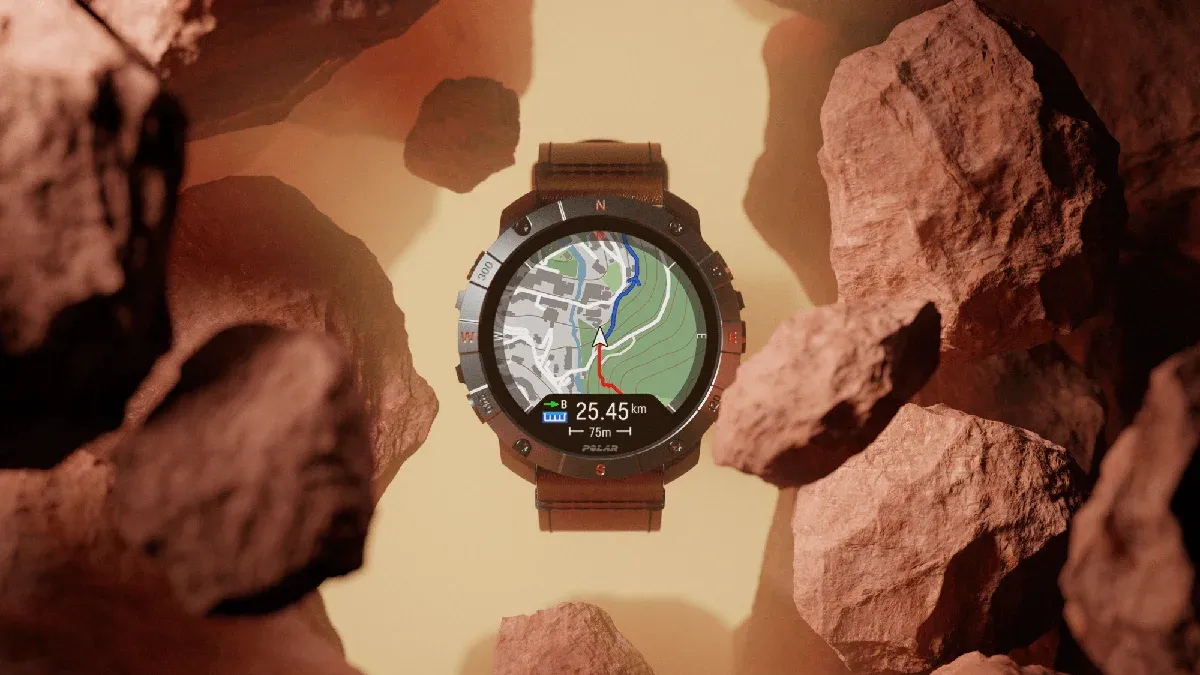
After starting your session, scroll to the map navigation training view with the UP/DOWN buttons. You can use the map either on its own (1) or with other navigation features, including Route Guidance (2), Back to Start (3) and Track back (4). You can set the features on from the map navigation menu.

In the map navigation training view,
- the location pointer (arrow head) displays your current location and heading. If heading information is not available, your location is indicated with a blue dot. Calibrate the compass via the map navigation menu to show your location with heading.
- breadcrumbs appear as a red line, showing the path you have taken so far.
- the blue line shows the route you have chosen for the training session, and arrows along the route indicate the direction of the route.
- the four cardinal directions shown around the map help you navigate.
- the map scale helps you identify the distance between places.
Map zooming
Press OK in the map navigation view to access the zoom mode. To zoom in or out, use the UP (+) and DOWN (–) buttons, or pinch with your fingers. You can move around the map by swiping. Press BACK to exit zoom mode. Your location on the map is centered automatically.
Map navigation menu
To open the map navigation menu, press OK in zoom mode, or press OK twice in the map navigation view. The menu then displays the following options.
Your location
View the coordinates of your current location.
Points of interest
Choose Set point on map, Choose from list or Choose shown POIs. For more information, see Points of interest.
Routes
In routes, you'll find the routes that you have saved as favorites in the analysis view of your training session in the Flow web service, and synced to your watch with the Polar Flow app. Komoot and Strava routes are also found here. Choose the route from the list, and then choose where you want to start the route: Start point (original direction), Mid-route (original direction), End point to reverse direction or Mid-route to reverse direction.
Back to start
Turn on the Back to Start (Via beeline) or Track back (Via same route) feature.
Map orientation
Choose North up to display the map with north always at the top of the screen.
Choose Track up to display your direction of travel at the top of the screen. When your direction changes, the map rotates accordingly.
Map theme
Choose Light or Dark theme for the map.
Compass calibration
Follow the instructions on the display to manually calibrate the compass.
Perform the calibration while wearing the watch on your wrist.
Current maps
View current maps and check the space used. You can also change the map or set it to be chosen automatically based on your location.
Download and transfer maps to your watch
To download and transfer maps to your watch, you need a computer, and your watch must be connected to your Flow account. First, download the map file from the Polar Flow web service, and then transfer it to the watch on your computer using File Explorer (Windows) or OpenMTP (Mac).
Download a map file from the Polar Flow web service
In the Flow web service, you can access the map download page by clicking your name/profile photo in the upper right corner and choosing Download maps. You can also use the direct link: flow.polar.com/maps.
You can download new maps or download the maps on your watch again to update them. You can choose maps that are smaller and more detailed, or larger and more basic.

Detailed maps (Countries and regions) show for example smaller trails and contour lines.
Basic maps (Continents and large areas) show for example main roads and tracks. Basic European and North American maps are pre-installed on your watch.
When you click on a region on the map, you will see the size of the map and when it was last updated. To download the map, click on the Download button.

Transfer the downloaded map file to your watch (Windows)
Plug your watch into your computer with the custom cable that came in the box. Make sure that the cable snaps into place.
Drag the downloaded map file from the Downloads folder to the Storage folder on your watch.

Once the map file is copied to your watch's storage folder, you can access the map during training via the map navigation view.
You can delete unnecessary maps from the storage folder when the watch is connected to your computer. Click on the map file with the right mouse button and choose Delete.
Transfer the downloaded map file to your watch (Mac)
To transfer map files to your watch, you need to install OpenMTP (file transfer app for macOS) on your Mac. You can download it from here: https://openmtp.ganeshrvel.com/
Once installed, open OpenMTP on your Mac:
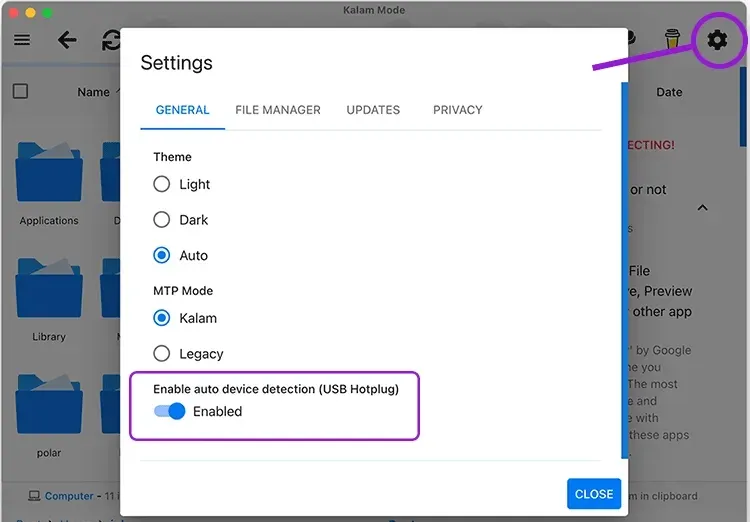
Enable auto device detection in OpenMTP settings:
Plug your watch into your computer with the custom cable that came in the box. Make sure that the cable snaps into place.
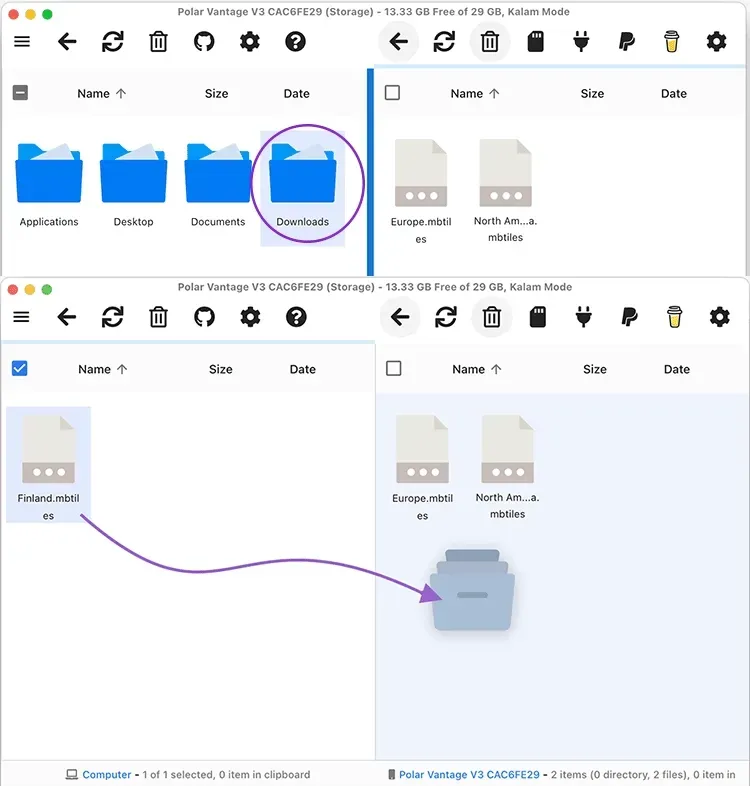
Your Mac files appear on the left side of the OpenMTP window and the storage folder of your watch on the right. Navigate to the Downloads folder of your Mac and drag the map file to the storage folder on your watch:
Once the map file is copied to your watch's storage folder, you can access the map during training via the map navigation view.
You can delete unnecessary maps from the storage folder when the watch is connected to your computer. Choose the map file you want to delete and then click the trash icon to the delete the file
Troubleshooting
I have installed OpenMTP on my Mac, but I keep getting the error “Could not connect to the device". What should I do?
1. Closing the Preview app if it's open (even if it runs in the background) might help resolve the issue. Close Preview by going up to the Preview menu in the Menu Bar and choosing Quit Preview.
2. Restart your watch. On your watch, press the BACK button, and go to Settings > General settings > About your watch. Scroll all the way down and choose Restart your watch.
3. Restart your Mac.