Troubleshooting Polar Loop
If you're having trouble setting up your Polar Loop with your phone and the Flow app, make sure that:
1. Your phone is compatible with the Flow app.
2. You have the latest version of the Flow app downloaded from Google Play or the App Store and installed on your phone.
3. Bluetooth is turned on in your phone and the airplane mode/flight mode is off. You can try to fix a problem in the Bluetooth connection by turning it off and on again in the phone's settings.
Note that you have to do the pairing in the Flow app, not in your phone’s Bluetooth settings.
4. Android users: make sure location is enabled for the Flow app in the phone's application settings.
5. Then, try setting up your Polar Loop again.
If you're still unable to set up, here are a few more steps that can help you solve the problem.
If you experience unexpected behavior in the Flow app during setup, first force quit the app to see if this helps. If not, uninstall and reinstall the app. Reset your Polar Loop if nothing else works. For instructions, see How do I reset my Polar Loop?(at the end of the article)
Polar Loop has to be paired with your phone in the Flow app, not in your phone's Bluetooth settings. If you have paired the device with your phone in your phone's Bluetooth settings, follow the instructions below to unpair the Bluetooth connection, and then set up the device using the Flow app.
1. On your phone remove your device from the list of paired Bluetooth devices as follows: iOS: Go to Settings > Bluetooth, tap the icon to the right of your device and choose Forget this Device. Android: Go to Settings > Bluetooth, choose your device and Forget this Device.
2. To remove the pairing from your device, reset it to factory settings by pressing the restart/reset button with a pin when the device is plugged in to charge. For detailed instructions, see How do I reset my Polar Loop? (at the end of the article)
3. Follow the instructions for setting up the device with the Flow app.

How do I reset my Polar Loop?
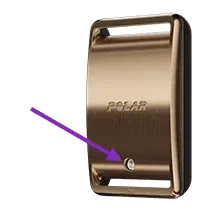
The restart/reset button is on the top side of the device, under the wristband. To restart the device, press the button with a pin when the device is NOT plugged in to charge.
To reset Polar Loop to factory settings
If restarting your device didn't help, you can reset the device back to factory settings. Note that resetting the device back to factory settings empties all personal data and settings from the device, and you will need to set it up again for your personal use. All data that you have synced from your device to your Flow account is safe.
Factory reset can be done in two ways:
Through the device settings in the Flow app.
By pressing the device's restart/reset button with a pin when the device is plugged in to charge.
1. To factory reset your device using the Flow app, go to Devices in the Flow app and choose Polar Loop if you have more than one Polar device. Then choose Factory reset.
To factory reset your device using the Flow app, go to Devices in the Flow app and choose Polar Loop if you have more than one Polar device. Then choose Factory reset.
2. By pressing the device's restart/reset button with a pin when the device is plugged in to charge.
When you perform a factory reset, Polar Loop is unpaired from your phone but may still appear in your phone’s paired Bluetooth devices list and in your Polar Flow account. Before setting up it again, remove it from both by following these steps:
1. Go to flow.polar.com and sign in.
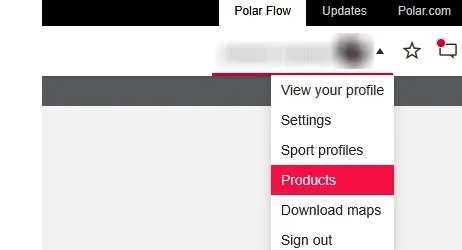
2. Click your name in the upper right corner and choose Products.
3. Find the product from the list and click the delete icon (X). Confirm by clicking Remove.
4. Check the list of paired Bluetooth devices on your phone, and remove Polar Loop from the list if it's there:
iOS: Settings > Bluetooth > tap “i” next to Polar Loop > Forget This Device.
Android: Settings > Bluetooth > tap the cogwheel image next to your Polar Loop, and FORGET.